How to Replace Your Shared Email Inbox With AI That Lives in Teams

If your team is still routing support requests, internal questions, or customer inquiries through a shared inbox like support@yourcompany.com or info@yourcompany.com, you already know the pain: emails get buried, ownership is unclear, response times slip, and half the team is cc'd on threads nobody asked to be on.
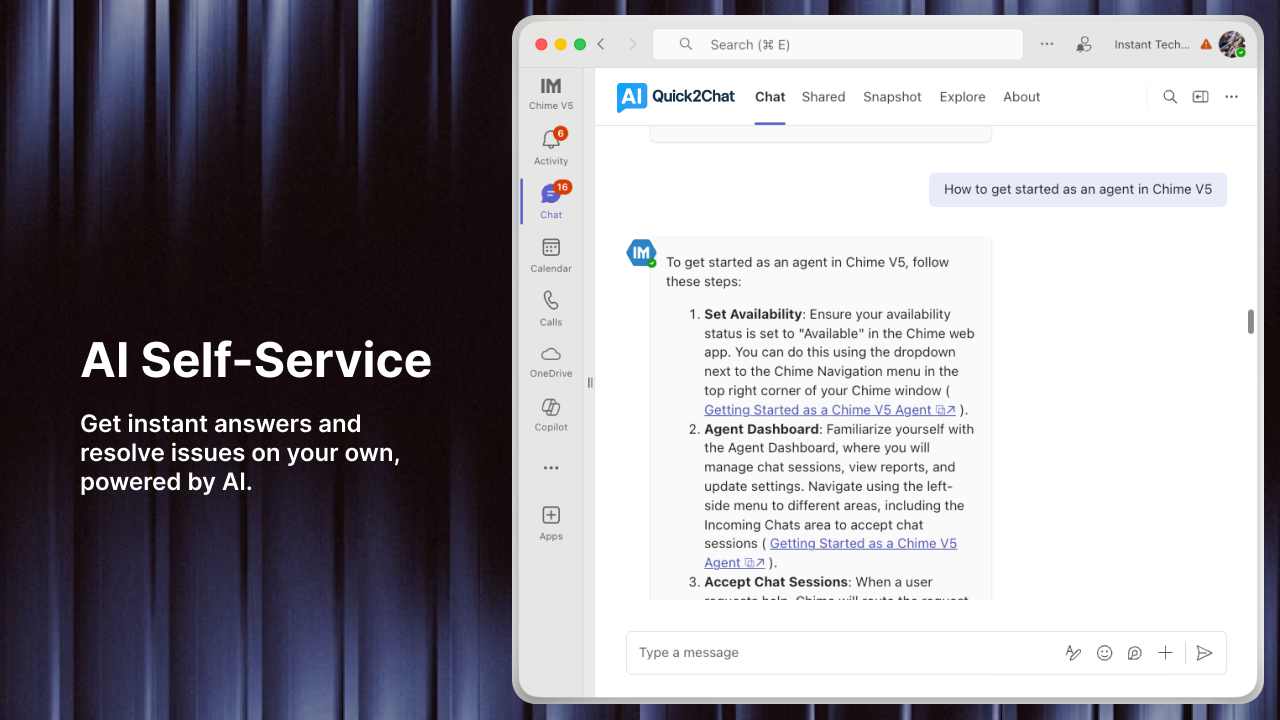
The good news? You can replace most of what that inbox does (triaging, routing, drafting responses, tracking follow-ups) with an AI that lives directly inside Microsoft Teams. No context-switching, no inbox sprawl, no "did anyone reply to this?" threads.
Here's how to do it.
Why Shared Inboxes Break Down
Shared inboxes feel organized at first. One address, everyone can see it, nothing gets lost, in theory. In practice:
- Ownership is ambiguous. Two people start drafting a reply. Or nobody does, assuming someone else will.
- Visibility creates noise. Everyone gets every email even when it only needs one person.
- Triage is manual and slow. Someone has to read each email and decide what it is before anything useful happens.
- There's no institutional memory. When a colleague leaves, their inbox context walks out the door with them.
Teams-based AI fixes all of this, and does it in the tool your team is already using all day.
What "AI in Teams" Actually Means
There are a few different ways to bring AI into Microsoft Teams for inbox replacement. The right choice depends on your team size, technical resources, and how much customization you need.
Option 1: Microsoft Copilot + Teams Channels
Microsoft 365 Copilot, when connected to your shared mailbox, can surface incoming emails directly into a Teams channel. Copilot can summarize threads, suggest responses, and flag urgency, all without leaving Teams.
How to set it up:
- Go to Teams Admin Center and enable Copilot for your organization.
- Create a dedicated Teams channel for incoming requests (e.g.,
#support-inboxor#info-requests). - Use Power Automate to create a flow: when a new email lands in the shared mailbox, post a message in the Teams channel with the subject, sender, and AI-generated summary.
- Use Copilot's draft reply feature in Teams to generate responses without opening Outlook.
This approach requires a Microsoft 365 Copilot license but involves minimal custom development.
Option 2: Power Automate + Azure OpenAI (Custom AI Routing)
For teams that want smarter triage, including automatically categorizing emails, routing them to the right person, and drafting contextual replies, Power Automate connected to Azure OpenAI gives you a fully customizable pipeline.
The flow looks like this:
- Trigger: New email arrives in shared inbox (
support@yourcompany.com). - Classify: Send email body to Azure OpenAI with a prompt like: "Classify this email into one of the following categories: billing, technical support, general inquiry, or complaint. Return only the category name."
- Route: Based on the returned category, use a Switch action to post the email into the appropriate Teams channel:
#billing-queue,#tech-support, or#general-requests. - Draft: Use another OpenAI call to generate a suggested reply, posted as a message in the thread.
- Assign: Tag the relevant team member using
@mentionin the Teams post.
This setup means every email is triaged, categorized, routed, and drafted within seconds of arriving, with a human reviewing and sending before anything goes out.
Tools you'll need:
- Microsoft Power Automate (included with most M365 plans)
- Azure OpenAI Service (pay-as-you-go, typically very low cost for email volumes)
- Shared Mailbox in Exchange/Outlook
Option 3: Custom Teams Bot via Azure Bot Framework
If you want the AI to be truly conversational, where your team can ask it questions like "what's the oldest unresolved ticket?" or "summarize all billing complaints from this week," you can build a custom Teams bot using the Azure Bot Framework connected to your email data.
This is the most powerful option and the most involved to set up. It works best for teams with a developer available (or willing to use a low-code platform like Power Apps alongside it).
Core components:
- Azure Bot Framework to handle Teams integration
- Microsoft Graph API to read emails from the shared mailbox
- OpenAI or Azure OpenAI for language understanding and generation
- A simple database (Azure Table Storage or Cosmos DB) to store email state and history
The bot can be added to any Teams channel and respond to natural language queries about the inbox in real time.
The Handoff: Migrating From Inbox to Teams
Switching from a shared inbox to AI-in-Teams doesn't have to be a hard cutover. Here's a practical migration path:
Week 1: Mirror mode. Keep the shared inbox active. Set up the Power Automate flow to post incoming emails into Teams channels in parallel. Your team continues working from email but starts getting familiar with the Teams view.
Week 2: Respond from Teams. Start using Copilot or AI-drafted replies generated in Teams, even if you're still sending from Outlook. Notice how much faster triage becomes.
Week 3: Teams as primary. Route all responses through Teams-generated drafts. Use the shared inbox only as a sending address, not as a working environment.
Week 4 onward: Archive the inbox. Reduce how often anyone opens the shared inbox. The Teams channel is your source of truth.
What You Actually Gain
Once the system is running, the shift is significant:
- Response time drops. AI triage and drafting cut the time from "email received" to "reply sent" dramatically, often from hours to minutes.
- Ownership is explicit. Every Teams post in the channel has a name attached. There's no ambiguity about who's handling what.
- Institutional knowledge stays. Because everything runs through Teams, conversations are searchable, referenceable, and don't disappear when someone leaves.
- Your team stays in one tool. No more tab-switching between Teams and Outlook. The inbox comes to where the work already happens.
A Note on What AI Still Can't Do
AI handles triage and drafting well. It doesn't replace judgment on complex, sensitive, or relationship-critical replies. You'll still want a human reviewing every AI-drafted response before it goes out, especially for anything involving a complaint, a legal question, or a long-standing client.
The goal isn't to remove humans from the loop. It's to remove the friction of getting to the loop. AI handles the 80% that's repetitive so your team can spend real time on the 20% that actually requires them.
Getting Started Today
If you're on Microsoft 365, you can build a basic version of this in an afternoon using Power Automate and a Teams channel, with no new software and no extra budget. Start there, see how your team responds to the workflow, and build out from that foundation.
The shared inbox had a good run. It's time to retire it.