10 Conversational Ticketing Templates to Speed Up Common Support Issues

Support teams handle the same types of requests over and over. Password resets, access issues, bug reports. These repetitive tickets eat up time that could be spent on more complex problems.
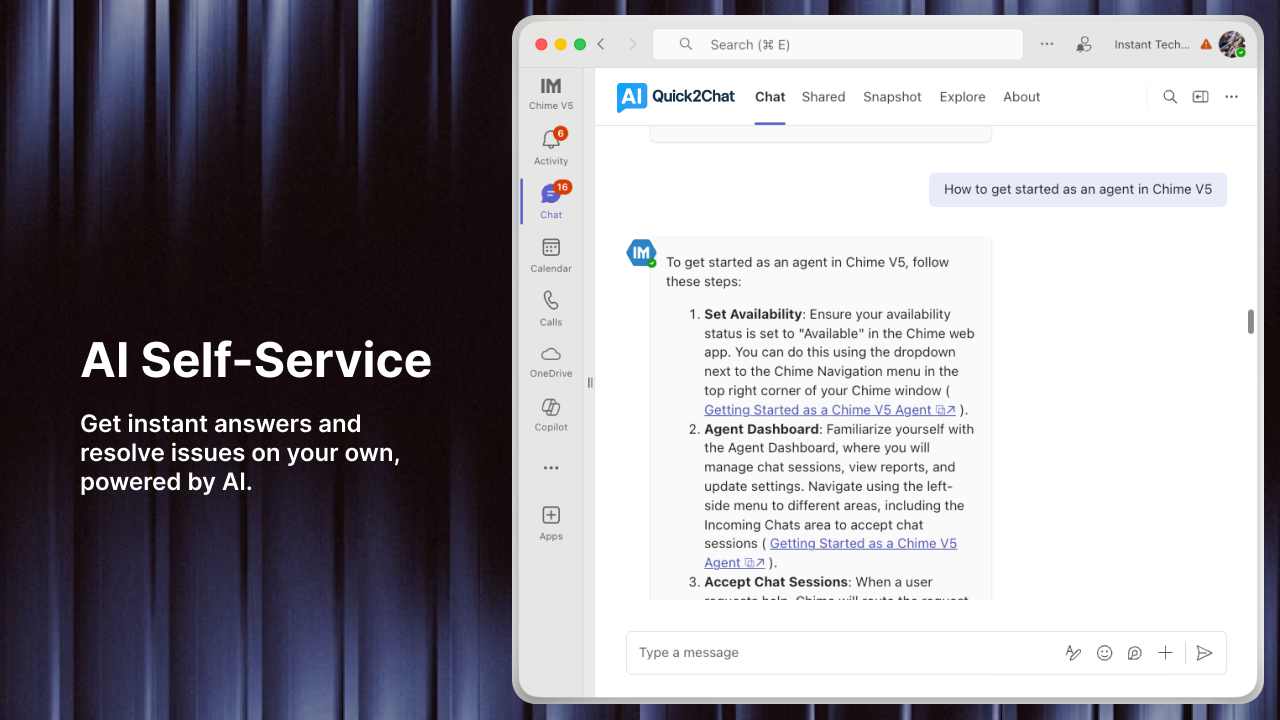
Conversational ticketing brings support into the chat platforms people already use, like Microsoft Teams. Instead of formal ticket submissions, users just send a message. The conversation feels natural, but everything gets tracked properly in the background.
Here are 10 ready-to-use templates for the most common support issues. Copy them, adjust them to fit your team's voice, and start using them today.
1. Password Reset Request
When to use: User can't log in and needs their password reset
Template:
Hi [Name]! I can help you reset your password.

For security, I'll need to verify your identity first. Can you confirm:
- Your employee ID or email address
- The last four digits of your phone number on file

Once verified, I'll send you a secure reset link that expires in 2 hours. You'll need to change your password at your next login.

Sound good?
Why it works: This template balances security with speed. Research shows that password resets make up a huge portion of help desk tickets, with some studies finding they account for 40% of all support calls. The template clearly explains what happens next and sets expectations about the expiration time.
2. Software Access Request
When to use: User needs access to a tool or system they don't currently have
Template:
Got it! You need access to [Software Name].

Quick questions to get this approved:
- What's your use case? (Just a sentence or two is fine)
- Do you need view-only access or full editing rights?
- Is this time-sensitive?

I'll submit this to [Manager/Team Name] for approval. These usually get processed within 24 hours. I'll ping you as soon as it's approved.
Why it works: This template gathers the essential information upfront, avoiding the back-and-forth that slows down access requests. It also manages expectations by giving a timeframe for approval.
3. Bug Report Submission
When to use: User encounters an error or unexpected behavior in software
Template:
Thanks for reporting this! Let me gather some details so our team can investigate.

Can you tell me:
- What were you trying to do when this happened?
- What did you expect to happen?
- What actually happened instead?
- Is this happening every time, or just once?

If you have a screenshot or error message, that would be super helpful. I'll create a ticket and get this to our tech team right away.
Why it works: Bug reports need specific information to be actionable. This template asks the right questions in plain language. According to support experts, documenting the exact error message and steps that led to the crash is vital for resolution.
4. Hardware Malfunction Report
When to use: User's device isn't working properly
Template:
Sorry to hear you're having hardware issues! Let's figure this out.

First, some quick troubleshooting:
- Have you tried restarting the device?
- When did the problem start?
- Does it happen constantly or only sometimes?

While you're checking that, I'll look into whether we have a spare [device type] you can use if we can't fix this quickly. Nobody should be stuck without working equipment.
Why it works: Hardware problems can halt someone's entire workday. This template shows empathy and immediately offers a backup plan. Studies indicate that hardware malfunctions are among the most disruptive issues for employees.
5. Email or Connectivity Problem
When to use: User can't send/receive emails or access the network
Template:
Email and connectivity issues are frustrating! Let's get you back online.

Can you check a few things for me?
- Are you connected to WiFi or ethernet?
- Can you access other websites or just email that's down?
- Any error messages popping up?

Also, are you working from the office or remotely? If remote, double-check that you're connected to the VPN.

Let me know what you find and we'll take it from there.
Why it works: Email and connectivity problems have multiple potential causes. This template helps narrow down the issue before escalating. Research shows these are among the top complaints to IT help desks.
6. Account Lockout
When to use: User is locked out after too many failed login attempts
Template:
No worries, account lockouts happen! Usually it's from mistyping a password with caps lock on, or trying an old password too many times.

I can unlock your account right now. It should be accessible again in about 2 minutes.

When you try to log in again:
- Make sure caps lock is off
- Try your most recent password
- If you're still stuck, I can send you a reset link

Unlocking your account now...
Why it works: Account lockouts are stressful for users. This template reassures them it's a common problem and provides a quick fix. According to support professionals, these issues are often simple to resolve once you check basic things like caps lock.
7. Software Installation Help
When to use: User needs a new application installed on their device
Template:
Sure! I can help you get [Software Name] installed.

Before we proceed:
- What's the main reason you need this software?
- Have you used it before, or is this your first time?

I need to verify that it's approved for company devices (security thing). If it's on our approved list, I'll either walk you through installing it yourself or do it remotely. Usually takes about 10-15 minutes.

Give me a sec to check our systems...
Why it works: This template addresses the security verification step upfront and sets realistic time expectations. Installation requests are common but require proper vetting to avoid security issues.
8. Missing Files or Data Recovery
When to use: User accidentally deleted files or can't find important documents
Template:
Don't panic! Let's find those files.

First, check these spots:
- Your Recycle Bin (might still be there)
- Recent files in the application you were using
- Shared drives or cloud folders

If they're not in any of those places, I can check our backup system. We back up everything daily, so as long as the file existed before today, we can recover it.

Can you tell me:
- File name or approximate name?
- When did you last see it?
- Where was it saved (desktop, shared drive, etc.)?
Why it works: Lost files cause immediate panic. This template offers quick self-service options first, then provides reassurance about backups. Data loss is surprisingly common, with one study finding 62% of computer owners have lost data before.
9. Scheduled Maintenance Notification
When to use: You need to warn users about planned system downtime
Template:
Heads up! We're doing some maintenance on [System Name].

Here's what you need to know:
- When: [Date] from [Start Time] to [End Time]
- What: [System Name] will be completely unavailable
- Why: We're [brief reason like "upgrading servers" or "applying security patches"]
- Your action: Save your work before [Start Time]

This maintenance is necessary to [key benefit like "improve system speed" or "keep your data secure"]. We'll send another message when everything's back up.

Questions? Reply here and I'm happy to help.
Why it works: Planned maintenance notifications need to be clear and specific. This template answers all the important questions upfront: when, what, why, and what users need to do. Proactive communication reduces support volume during outages.
10. General Status Update
When to use: You need to update a user on their existing ticket
Template:
Quick update on your ticket about [issue]!

Current status: [In progress/Waiting on approval/Testing fix/etc.]

Here's what's happening: [1-2 sentence explanation]

Next steps: [What will happen next]

Expected timeline: [Realistic timeframe]

You don't need to do anything right now. I'll reach out again when [next milestone]. But if you have questions or the situation changes, just ping me here anytime.
Why it works: Users hate being left in the dark. Regular updates, even if there's no resolution yet, show you're actively working on their problem. This builds trust and reduces follow-up messages asking "what's happening?"
How to Make These Templates Work for Your Team
Personalize them. These templates are starting points. Add your company's terminology, adjust the tone to match your brand, and include any specific details relevant to your setup.
Keep them conversational. The whole point of conversational ticketing is that it feels like chatting with a colleague, not filling out a form. Use contractions, ask questions naturally, and write like you talk.
Train your team. Templates are tools, not scripts. Your support team should know when to follow the template closely and when to adapt it. Real conversations sometimes need to go off-script.
Update regularly. Review your templates every few months. Are certain questions always getting asked? Are users confused by certain phrasing? Keep improving them based on real feedback.
Track what works. Pay attention to which templates lead to faster resolutions. If one template consistently requires lots of follow-up, it probably needs more information upfront.
References
-
Desk365. "Conversational Ticketing: An Ultimate Guide (2025)."
-
InvGate. "Password Reset Best Practices: A Guide for Help Desk Professionals."
-
Duo Security. "Resetting Passwords (and Saving Time and Money) at the IT Help Desk."
-
Whatfix. "13 Common Help Desk Tickets in 2025 (+How to Solve Them)."
-
Help Scout. "Live Chat Best Practices and Tips for Customer Service Teams."
-
ITSM.tools. "Free IT Ticket Templates - 30 Ready-To-Use Service Desk Forms and Replies."
-
DeskAlerts. "16 Most Common Helpdesk Problems and How to Solve Them."
-
Kayako. "Top Live Chat Best Practices for Customer Support Teams."